Below is a guide for getting a Synaptics RMI4 touchscreen working on a Raspberry Pi using bit-bang I2C.
Over on the rPI_TFT_LCD_Driver project, the Raspberry Pi interfaces with the LCD panel through DPI (Display Parallel Interface). DPI uses a large number of GPIO pins, including the pins normally used for the hardware I2C peripheral (GPIO 2 & 3), so the built-in I2C hardware can’t be used for the touchscreen.
The project uses Mode 6, RGB666, which only drives 18 of the 28 data pins, leaving a few GPIOs free. GPIO 19 and GPIO 26 were available, so I used those to bit-bang the I2C protocol for the RMI4 touchscreen. Bit-bang I2C is implemented in software using the i2c-gpio kernel driver, which toggles GPIO pins directly rather than using dedicated I2C hardware.
The standard Raspberry Pi OS kernel doesn’t include the Synaptics RMI4 driver by default, so a custom kernel build is required. You can compile the kernel directly on the Pi, but cross-compiling on an x86 host is much faster. I used Ubuntu and followed the official Raspberry Pi Linux kernel build guide.
Installing the cross-compilation toolchain
Install the required build tools and AArch64 cross-compiler on your host machine:
sudo apt install crossbuild-essential-arm64 bc bison flex libssl-dev make libncurses-dev
Confirming the touchscreen I2C address
Before compiling anything, it’s worth confirming the touchscreen is visible on the I2C bus and what address the synaptics driver responses too. With the i2c-gpio overlay loaded in /boot/config.txt (covered in the config.txt section below), run:
i2cdetect -l
i2cdetect -y 11
i2cdetect -l lists all available I2C buses. The -y 11 scans bus 11, which is what i2c-gpio is typically assigned — yours may differ depending on your config.txt settings.
A successful scan shows 0x20 in the address grid:
     0  1  2  3  4  5  6  7  8  9  a  b  c  d  e  f
00:          -- -- -- -- -- -- -- -- -- -- -- -- --
10: -- -- -- -- -- -- -- -- -- -- -- -- -- -- -- --
20: 20 -- -- -- -- -- -- -- -- -- -- -- -- -- -- --
...
If nothing shows, check the
i2c-gpiooverlay is active, the SDA/SCL GPIO numbers match your wiring, and that pull-up resistors are fitted on both I2C lines. I2C requires pull-ups to VCC (3.3 V on a Raspberry Pi) to work.
Compiling the Linux kernel
Clone the Raspberry Pi Linux repository:
git clone --depth=1 https://github.com/raspberrypi/linux
--depth=1 fetches only the latest commit, skipping the full history and keeping the download manageable.
Enter the directory and generate the default config for the Raspberry Pi 4:
cd linux
KERNEL=kernel8
make ARCH=arm64 CROSS_COMPILE=aarch64-linux-gnu- bcm2711_defconfig
kernel8targets the 64-bit ARMv8 kernel for the Pi 4. For a 32-bit build, usekernel7lor one of the other options to suit your model.
Open menuconfig to enable the RMI4 driver options:
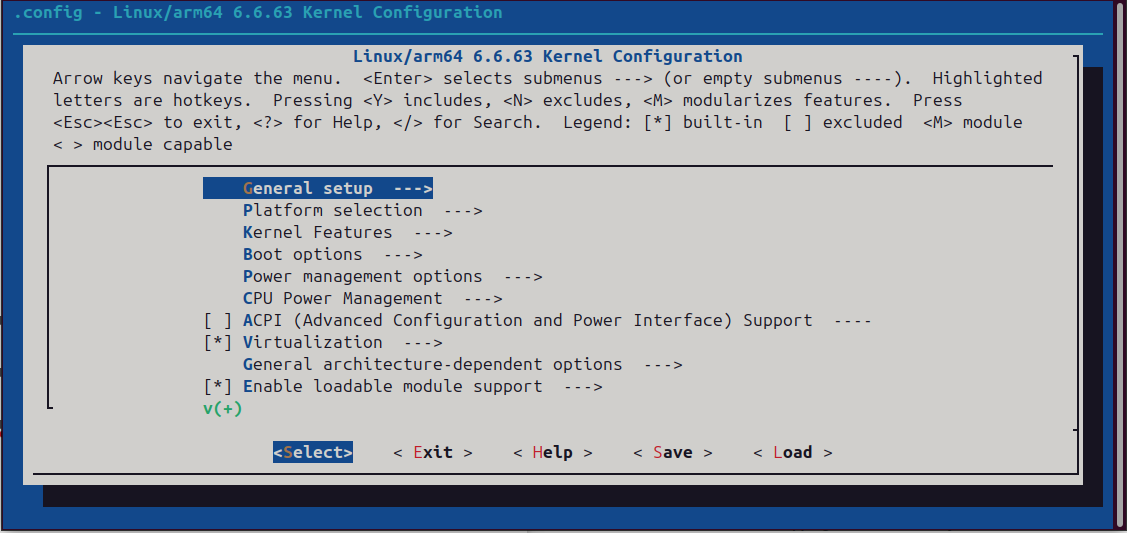
make ARCH=arm64 CROSS_COMPILE=aarch64-linux-gnu- menuconfig
menuconfig opens a text-based configuration UI:
Navigate to the RMI4 options and enable both CONFIG_RMI4_CORE and CONFIG_RMI4_I2C:
Device Drivers
  └─ Input device support
       └─ Touchscreens
            ├─ [*] Synaptics RMI4 bus support        (CONFIG_RMI4_CORE)
            └─ [*] RMI4 I2C Support                  (CONFIG_RMI4_I2C)
Use arrow keys (↓,↑) to navigate, Enter (↵) to expand a menu, Y to mark an option as built-in ([*]).
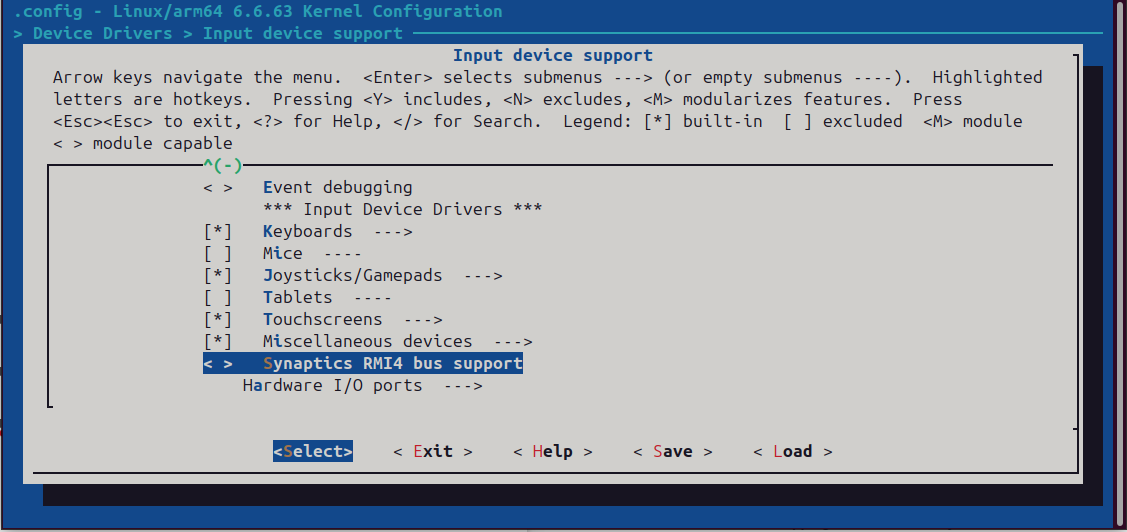
Press Esc until prompted to save, then confirm. Now build the kernel:
make -j$(nproc) ARCH=arm64 CROSS_COMPILE=aarch64-linux-gnu- Image modules dtbs
$(nproc)uses all available CPU cores. On a modern desktop like mine this takes less than 5 minutes. Compiling directly on a Pi 4 can take several hours, I strongly recommend cross-compiling, as each mistake or modification only wastes time.
Copying the kernel to the SD card
Remove the SD card from the Pi and connect it to your host machine. Identify the partitions:
lsblk
You should see two partitions: the boot partition (FAT32) and the root filesystem (ext4). Mount both:
sudo mount /dev/sda1 mnt/boot
sudo mount /dev/sda2 mnt/root
Replace
/dev/sdawith the actual device node fromlsblk. Double check this before running.
Optionally back up the existing kernel first:
sudo cp mnt/boot/$KERNEL.img mnt/boot/$KERNEL-backup.img
Install the kernel modules:
sudo env PATH=$PATH make -j$(nproc) ARCH=arm64 CROSS_COMPILE=aarch64-linux-gnu- INSTALL_MOD_PATH=mnt/root modules_install
Copy the kernel image, device tree blobs, and overlays:
sudo cp arch/arm64/boot/Image mnt/boot/$KERNEL.img
sudo cp arch/arm64/boot/dts/broadcom/*.dtb mnt/boot/
sudo cp arch/arm64/boot/dts/overlays/*.dtb* mnt/boot/overlays/
sudo cp arch/arm64/boot/dts/overlays/README mnt/boot/overlays/
Keep the SD card mounted for now — you’ll need it again to copy the device tree overlay in the next step.
Compiling the device tree overlay
A device tree overlay is a small binary that describes a hardware device to the Linux kernel at boot. The overlay below tells the kernel about the RMI4 touchscreen on the bit-bang I2C bus.
A helpful reference: Device Driver Development with Raspberry Pi.
Create ↓ rmi4-i2c.dts:
/dts-v1/;
/plugin/;

/ {
  compatible = "brcm,bcm2835", "brcm,bcm2836", "brcm,bcm2708", "brcm,bcm2709";

  fragment@0
  {
    target = <&i2c_gpio>;
    __overlay__
    {
      #address-cells = <1>;
      #size-cells = <0>;
      status = "okay";

      rmi4-i2c-dev@20
      {
        compatible = "syna,rmi4-i2c";
        reg = <0x20>;
        #address-cells = <1>;
        #size-cells = <0>;
        interrupt-parent = <&gpio>;
        interrupts = <10 2>;

        rmi4-f01@1
        {
          reg = <0x1>;
          syna,nosleep-mode = <1>;
        };

        rmi4-f12@12
        {
          reg = <0x12>;
          touchscreen-inverted-y;
          touchscreen-size-y = <272>;
          syna,offset-y = <80>;
          syna,sensor-type = <1>;
        };
      };
    };
  };
};
Key fields worth noting:
| Field | Description |
|---|---|
reg = <0x20> |
I2C address of the touchscreen controller |
interrupts = <10 2> |
GPIO 10 used as interrupt, active on falling edge |
touchscreen-inverted-y |
Flips the Y axis — remove if touch is oriented correctly |
touchscreen-size-y = <272> |
Vertical resolution of the display in pixels |
syna,offset-y = <80> |
Y offset to account for any panel margin |
rmi4-f01 / rmi4-f12 |
RMI function descriptors: “device control” & “2D touch tracking” |
Compile the .dts source to a .dtbo binary:
dtc -@ -I dts -O dtb -o rmi4-i2c.dtbo rmi4-i2c.dts
The
-@flag is required for overlays that reference nodes in the base device tree (like&i2c_gpio). Without it, the overlay will fail silently at boot.
This generates ↓ rmi4-i2c.dtbo.
Copy it to the SD card overlays directory:
sudo cp rmi4-i2c.dtbo mnt/boot/overlays/
Now unmount the SD card:
sudo umount mnt/boot
sudo umount mnt/root
Enabling the overlay in config.txt
Edit /boot/config.txt, adjusting the GPIO pin numbers to match your wiring:
# Bit-bang I2C on GPIO 26 (SDA) and GPIO 19 (SCL)
dtoverlay=i2c-gpio,i2c_gpio_sda=26,i2c_gpio_scl=19

# our custom RMI4 i2c overlay we created
dtoverlay=rmi4-i2c
Reboot the Pi, then confirm the touchscreen is detected:
lsmod | grep rmi
If lsmod shows rmi_core and rmi_i2c the synaptics RMI4 has been added in correctly.